

Overview
The SendLayer MCP server exposes tools for sending email and managing webhooks/events using the SendLayer Node.js SDK. You can use it from AI tools like Cursor and Claude to run local scripts, chat with an AI model, and send results to yourself or your team without wiring up HTTP calls manually.What Is MCP?
MCP (Model Context Protocol) is a protocol that allows AI tools to interact with external services and data sources. It’s a way to extend the capabilities of AI tools by allowing them to use external tools and data sources.Tools
- send-email: Send a message (plain text or HTML) with CC/BCC, reply-to, tags, headers, and attachments.
- get-events: Query events with optional filters.
- list-webhooks: List registered webhooks.
- create-webhook: Create a webhook.
- delete-webhook: Delete a webhook by ID.
Prerequisites
- A SendLayer account and API key (get your API key)
- A verified sending domain (authorize your domain)
- Cursor or Claude Desktop installed
Connecting to the MCP Server
The easiest way to get started is to connect to the hosted SendLayer MCP server. No local installation is required.Cursor
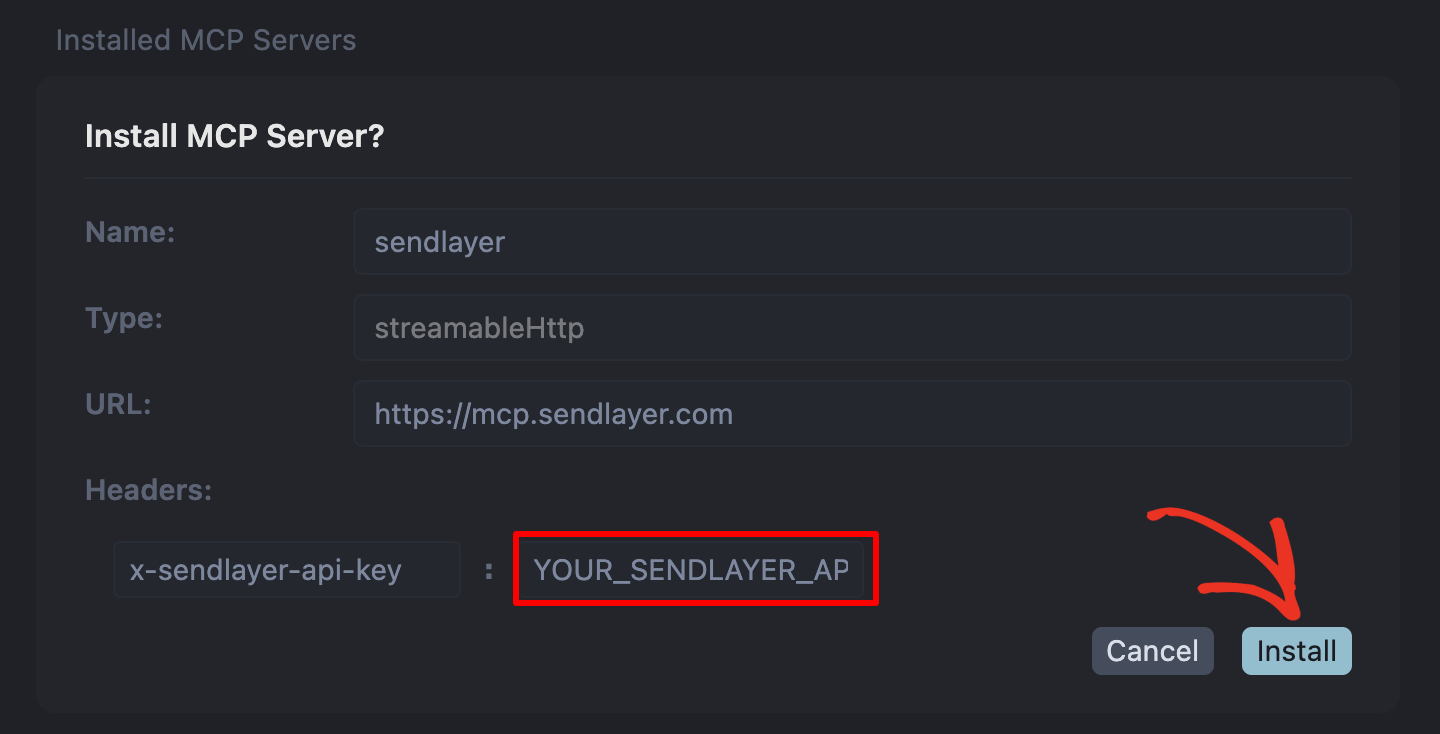
Use the direct link below to install the MCP server in Cursor: This will open the MCP server installation page in Cursor. Enter your SendLayer API key and click Install.
Manual Installation
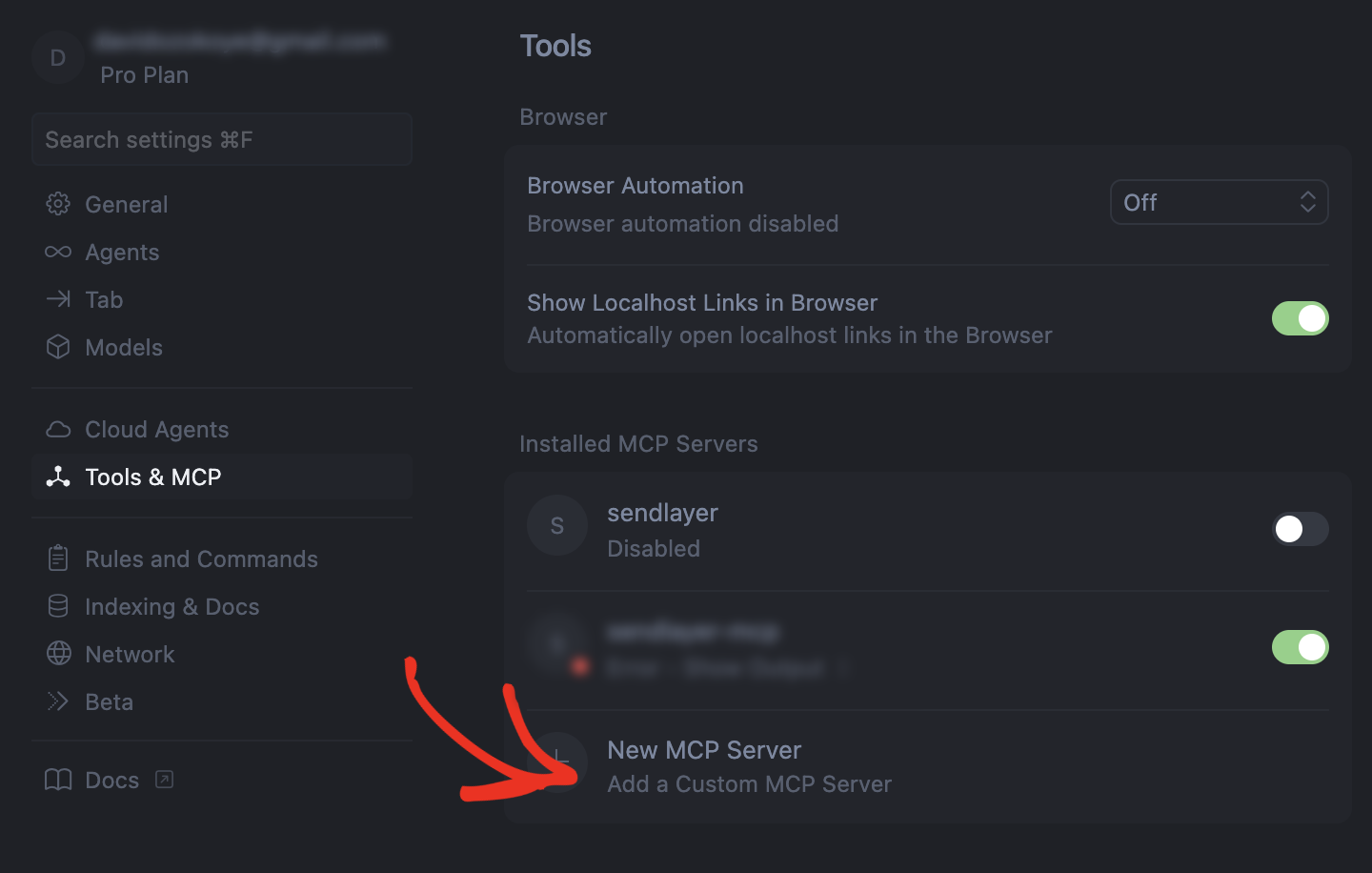
If you’re not using the direct link, open the command palette (cmd+shift+p on macOS or ctrl+shift+p on Windows) and choose Cursor Settings.
Then, select Tools & MCP from the left sidebar and click New MCP server.
mcp.json file, add the following config:
YOUR_SENDLAYER_API_KEY with your actual SendLayer API key from app.sendlayer.com.
After saving the file, restart Cursor and verify the MCP server is connected. You can now use commands like “send an email to recipient@example.com” in Agent mode.
Claude Code
Run the following command on your terminal to configure the MCP server:YOUR_SENDLAYER_API_KEY with your actual SendLayer API key.
Gemini-CLI
Open a terminal and run the following command to edit your~/.gemini/settings.json file:
YOUR_SENDLAYER_API_KEY with your actual SendLayer API key.
To test the connection, run the following command:
sendlayer server in the list. You can now use the sendlayer server to send emails and manage webhooks/events.
Windsurf
Open your Windsurf settings page. Then select the Cascade sidebar menu and click Open MCP Marketplace.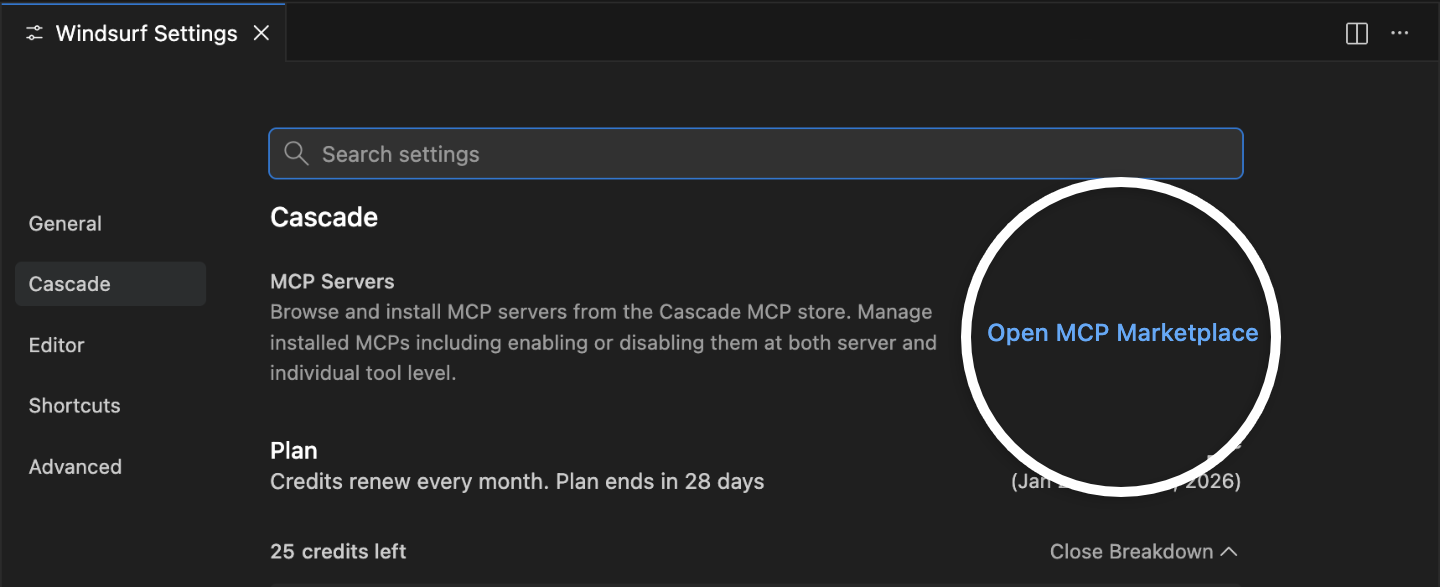
mcp_config.json file.
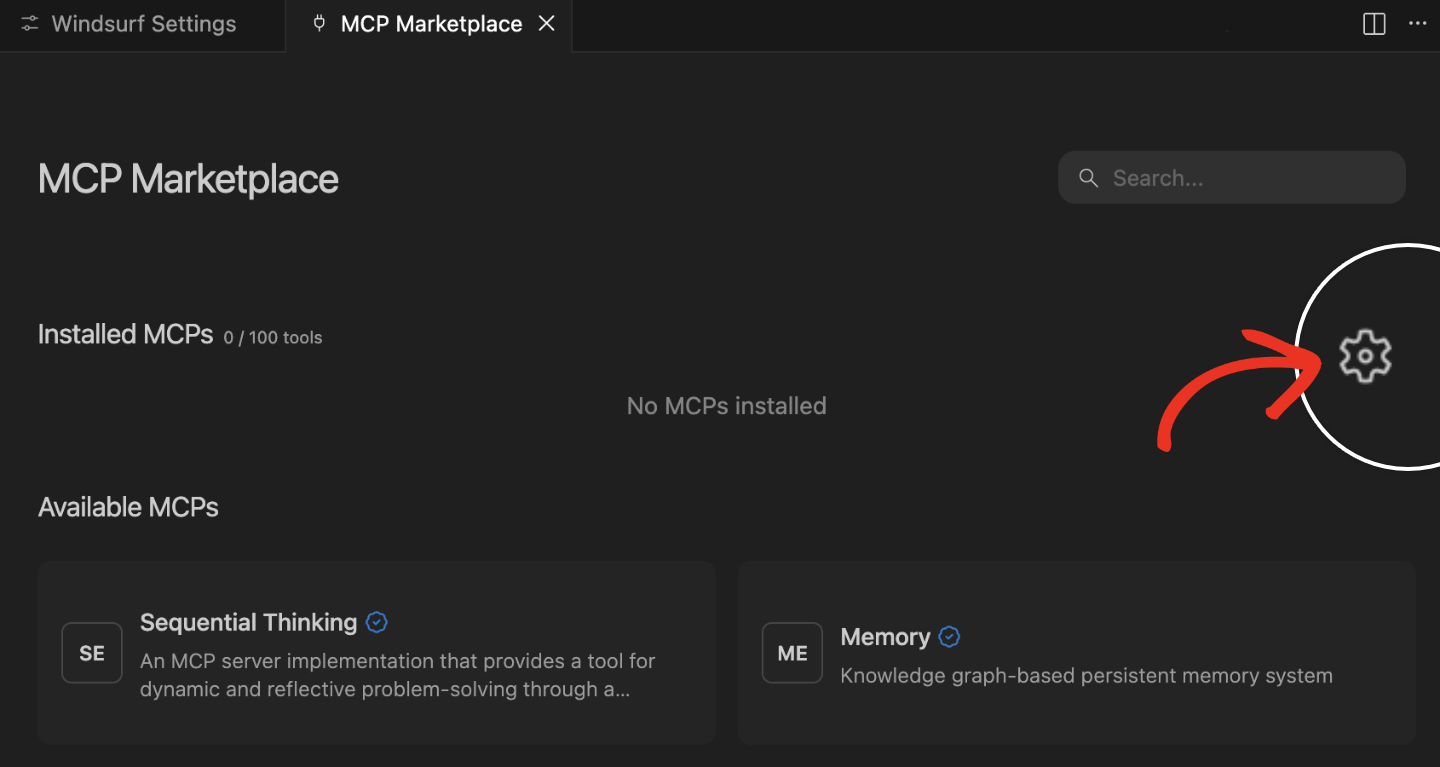
YOUR_SENDLAYER_API_KEY with your actual SendLayer API key.
Features
- Send plain text and HTML emails
- Send emails with attachments
- Add CC and BCC recipients
- Customize the sender email (verified domains only)
- Create, list, and delete webhooks
- Retrieve and filter email events